Tuesday, 19 July 2016

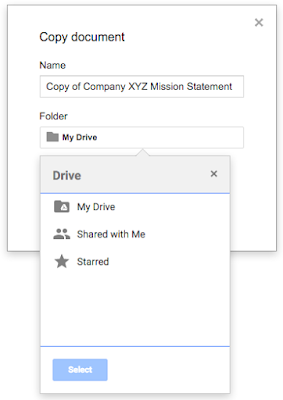
Choose a file’s folder location when you make a copy in Google Docs, Sheets, and Slides


Previously, when you made a copy of a Google Docs, Sheets, or Slides file, that copy would be automatically added to your My Drive folder—instead of the original file’s folder as most people would expect. Going forward, when you make a copy of a Docs, Sheets, or Slides file on the web, you’ll be able to choose which folder to place the file in. This should reduce confusion and make it easier to organise your Docs, Sheets, and Slides files.


ref: http://googleappsupdates.blogspot.ie/2016/07/choose-files-folder-location-when-you.html

regards,

Paul
Dcu Apps Team,

Wednesday, 13 January 2016

Organize your folders and files in Google Drive more easily !!!


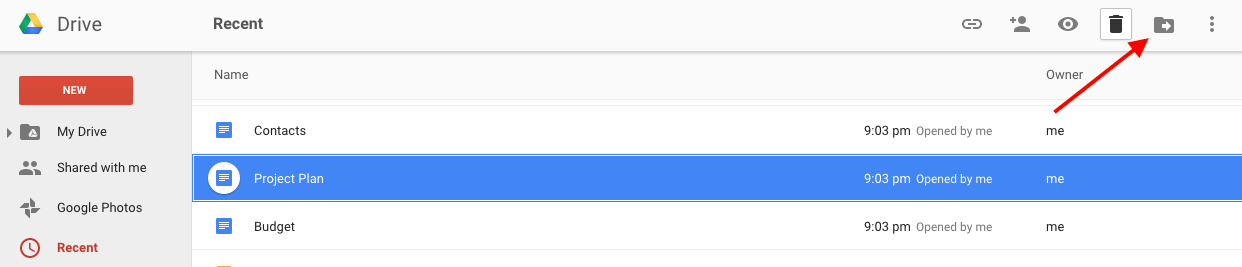
We know how important it is to stay organized at work, so we’re making it easier to move and arrange your files and folders in Google Drive. When looking at Search results or items in the Shared with me, Recent, or Starred views in Drive, you’ll now see one of two options in the toolbar at the top of the screen. If the item you've selected is not already located in My Drive, you’ll continue to see the option to Add to My Drive. Clicking on that option will add the item to My Drive and then allow you to move it to various folders.


Add to My Drive v2.png


Alternatively, if the item you’ve selected is already in My Drive, you’ll now see an option to Move to, which will make it easy to move that item to a new or different folder via a simpler, clearer workflow.


Move to v2.png


Ref: Google Blog

Friday, 4 September 2015

Explore in Google Sheets

With Explore in Google Sheets, you can now spend less time trying to decipher your data, and more time making a point !!


regards,

Paul 
DCU Apps Team

Thursday, 16 July 2015

Disable downloading, printing, and copying of any Google Drive file


Using Google Drive you can now disable downloading, printing, and copying from the advanced sharing menu―perfect for when the file you're sharing contains sensitive information that you don't want shared broadly or leaked. This new option is available for any file stored in Google Drive, including documents, spreadsheets, and presentations created with Google Docs.


More details can be found here at the Google Apps update blog -http://googleappsupdates.blogspot.ie/2015/07/disable-downloading-printing-and.html

regards,

Paul 
DCU Apps Team

Wednesday, 15 July 2015

Customize the App Launcher to make frequently used apps more accessible


It is now possible to customize the App Launcher by moving app icons between rows and screens., this can be done by simply clicking and dragging. This now makes it easier for you to access the apps you use most.

A message explaining "NEW! Drag and drop to arrange your apps" will appear at the top of the App Launcher for a short time following the launch. You can dismiss this message permanently at any time by simply clicking the “x” in the upper right-hand corner.


regards,

Paul
DCU Apps Team 


Thursday, 11 June 2015


Google Calendar - SMS notifications 

Important: SMS notifications not available after June 27th

Starting on June 27th, 2015, SMS notifications from Google Calendar will no longer be sent. SMS notifications launched before smartphones were available. Now, in a world with smartphones and notifications, you can get richer, more reliable experiences on your mobile device, even offline.
To receive notifications on your smartphone, you can use the calendar app that came with your device, or install Google Calendar for Android or iPhone. Learn more about notifications.
Note: This change will not affect Google Apps for Work, Education and Government customers.


You can get notifications for your events through SMS on your phone. If you have a smartphone, you can get notifications through a calendar app instead.
Cost of SMS notifications
Google Calendar is a free product and Google doesn't charge you to receive notifications. Please keep in mind that your mobile service provider's standard rate for receiving text messages may apply. If you have any questions about the rate, please contact your service provider for more information.
Register your mobile phone
To register your mobile phone with Google Calendar, you'll need a verification code.

1.       Open Google Calendar.
2.       Click the settings gear in the top right https://lh4.ggpht.com/Ou-WVwcxIEpAjFZYEAFddPQWew6JA2HeQdQMcX_QP6pb6GYDl5atmAAqOwfZz-t0sjFx55_I=w50.
3.       Select Settings.
4.       Open the Mobile Setup tab at the top.
5.       Add your country and phone number.
6.       Click the Send Verification Code button.
7.       Once you get the text message, enter the code you received in the Verification code field and click the Finish setupbutton.
8.       Click Save.
It's possible to register the same mobile phone number for multiple Google Accounts. You can receive all notifications, including SMS, for any calendar in each of your Google Accounts.

Turn off SMS notifications
1.       Open Google Calendar.
2.       Click the settings gear in the top right https://lh4.ggpht.com/Ou-WVwcxIEpAjFZYEAFddPQWew6JA2HeQdQMcX_QP6pb6GYDl5atmAAqOwfZz-t0sjFx55_I=w50.
3.       Select Settings.
4.       Open the Calendars tab at the top.
5.       Click Edit notifications for the calendar that's set up to get notifications.
6.       Uncheck the boxes in the SMS column on the right.
7.       Click Save.
If your mobile number is issued within one of the following countries, you can text "STOP" to cancel SMS notifications for all of your calendars:

Full details can be found at: https://support.google.com/calendar/answer/45351?hl=en

regards,

Paul 
DCU App's Team 


Tuesday, 28 April 2015

Google Hangouts

Start a Hangout
With Hangouts, you can send messages, emoji, and photos or start video calls with your colleagues. You can start a Hangout from Mail, Google+ Page or profile, the Chrome desktop app, your Android or iOS device or with the Chrome extension.

You can start a Hangout with anyone you’d like as long as the person has a Google Account. If you start a Hangout with someone who doesn't have a Google account, an invitation will be sent to their email address asking them to join Hangouts.


Start a Hangout conversation or video call

Start a Hangout conversation or video call
1. Open Hangouts in Gmail or Google+.
Gmail: In the bottom-left corner, click on the Hangouts icon.
Google+: In the top-right corner, click on the Hangouts icon.


2. Select a person from the Hangouts list. The list is ordered with your most recent Hangout at the top. Or click the search button  and type a name or email address. When you find the person you want, click their name. If you want to start a group Hangout, check the boxes in front of multiple people's names and click the chat icon   to start a message or a video icon  to start a video call.

3. Choose the type of Hangout you want to start:
        Text conversation: Type the message you want to send in the text box that says “Send a message” and press the  return key on your keyboard to send the message. The typing indicator will show other people in the Hangout that you’re typing a message. Video call: Click the video icon to start a video call.

        If  you’re using the Hangouts Chrome extension, Hangouts conversation windows started in Gmail or Google+ will open outside of the browser window.

More details can be found - https://support.google.com/hangouts/answer/3115553?hl=en

regards,

Paul 
DCU APP's Team


Tuesday, 3 March 2015

Google Drive folder - "Shared with me" is back 


With the launch of the new Google Drive layout, Google renamed the "Shared with me" section to ‘Incoming’ and tweaked the functionality a bit. From recent feedback from people using the new layout they have now brought back this in Drive, more details can be found here from Google


regards,

Paul
ISS Department
DCU Apps Team


Thursday, 26 February 2015


DCU Summit featuring Google for Education 


We are delighted to announce a DCU Summit featuring Google for Education which takes place in Dublin City University on Thursday 19th and Friday 20th March 2015.

The summit is focused on helping you get the most out of Google Apps in the Education environment. It will promote student learning and collaboration with multiple sessions for all levels led by Google education experts and colleagues from educational institutions who will share their experiences of harnessing the power of Google Apps.

We have lots of fun activities including a ‘demo slam’ competition, where attendees share quick two minute demos of something they have learned using Google Apps….with great prizes.

Registration and details can be found here


regards,

Paul 
DCU Apps Team


Wednesday, 17 December 2014


Sharing Drive Files as Attachments in DCU App's Email


There are now more ways to share Drive files with friends Colleague's through DCU App's Mail. By selecting the “Insert as Attachment” option from Drive you’ll be able to attach non-Google files directly to your Email message

By selecting the “Insert as Attachment” option from Drive you’ll be able to attach non-Google files directly to your Gmail message.


ref: https://plus.google.com/+Gmail/posts/E2k6eTuJtaC


regards,

Paul
DCU APP's Team

Friday, 21 November 2014

Launch desktop applications from Google Drive in Chrome


This new extension for Chrome lets you open files from Google Drive directly into a compatible application installed on your computer. This includes applications like image software, accounting and tax programs, or 3D animation and design tools. So, no matter what you keep in Drive, using the web to access and manage files doesn't mean you’re limited to using applications that only work in your browser.


ref: Official Google Drive for Work Blog , Details can also be found on the DCU App's Community 


regards,

Paul 
DCU App's Team


Monday, 3 November 2014


Google Share Button 


The share button from Google's navigation bar looks different: it now uses an icon instead of text and it's more compact. It's interesting to notice that Google used a text label only in the English interface.


ref: http://googlesystem.blogspot.ie/2014/10/new-google-share-button.html

regards,

Paul
DCU App's Team

Monday, 15 September 2014


Dear Colleagues,


It’s been a little more than two years since Google Drive launched, and already, more than 190 million people are actively using it to safely store and access their files on their phones, tablets, and computers. This tremendous growth has allowed us to offer more affordable storage plans and Google have updated Drive so it’s faster and even easier to use.


For mobile
If you use the Drive app for Android or iOS, you’ll notice everything is now a bit speedier and easier to navigate. Thanks to faster background syncing, the new mobile app makes it easy to find and quickly open files. Plus, you get a host of new features that let you see who has access, view recent changes, or grab a link to share with more people. You can even enable offline access or print a file directly from the app.

For the web
You’ll be offered access to the new Drive for the web over the coming weeks. When you agree to give it a try, you’ll experience a new look and better performance. It's also easier to take some of the most common actions — simply click once on a file to see recent activity, share with friends, or enable offline access. For you organizational fiends, you now have three easy ways to take group actions on multiple files: right click on the selected files, use the menu above the file area, or simply drag the group to a new location in Drive.

For everyone
We are committed to making Drive useful for everyone. This includes having it localized in over 70 languages and, with this latest update, making Drive much more accessible for our blind and visually impaired users. The new Drive includes improved keyboard accessibility, support for zooming and high contrast mode, and better compatibility with screen readers.

regard,


Paul
DCU App's Team


Thursday, 4 September 2014

Dear Colleagues
,

This is a reminder that the new DCU Apps Spam filter goes live from this week. No new e-mails will be held in the old spam system after today and going forward any messages held as spam will be located in the Spam folder of your DCU Apps account.
 

New Spam Filter

From September 3rd, DCU Apps e-mail will use the Google spam filter rather that the old DCU spam filter system. This will help further reduce the amount of spam messages that are delivered to the inbox of DCU e-mail accounts.

If a message is held incorrectly as spam, you can just move it back to the inbox. 
The old quarantine reports will continue to be delivered until October 2nd. Please deliver any valid e-mail from your reports before this date. The reports will stop being delivered after this date.
For more information on the DCU Apps Spam filter and how to use it, please see the document attached or go to the following link;


Please note: The DCU Apps e-mail spam filter does not stop legitimate messages arriving in to your inbox from external sources that you have subscribed to either directly or indirectly. If you have inbox tabs enabled as mentioned above, mail from these sources will be held in the appropriate tab, not in your main inbox.
If you wish to stop receiving particular marketing e-mails that you are subscribed to, you will need to unsubscribe from their mailing list through the link provided in their email.
We hope you really enjoy the benefits of these improvements. Please contact us if you have any questions.


regards,

Paul 
DCU App's Team 

Tuesday, 15 July 2014

DCU App's Compose Email 


DCU App's compose your email window allows for multiple messages at once and has a slick interface


The clip can also be found on our DCU App's Community -  DCU App's Compose Email


regards,

Paul
DCU App's Team

Thursday, 10 July 2014


Viewing Multiple Calendars from your Own Calendar


If you would like to view multiple calendars from your own DCU App's Calendar account or have a collaborative calendar, follow these instructions in order to see all entries from all calendars on your App's Email or a Mobile Device.

Using your iPhone choose this option for your DCU Calendar

Using your Android choose this option for your DCU Calendar

Using a web browser choose this option for your DCU Calendar:

Log in using your DCU username and password, select the additional calendars that you require to appear on your Mobile Device and click save. Sign out of this page and after a couple of seconds it should have synced the additional calendar entries.

regards,

Paul
DCU App's Team
ISS Department

Tuesday, 8 July 2014

  Difference between Moving and Copying in Google Drive


This video will show you how to use the ADD method in Google Drive to move a document from a shared folder. The document remains in the shared folder but is added to My Drive.


regards,

Paul
DCU App's Team

Friday, 27 June 2014

Guide to Using Labels in DCU App's Email

Learn the basic functions of using labels in your DCU App's Email Inbox. This can be very useful, Labels are a great alternative to folders and are a unique quality to your Email. 


Regards,

Paul

DCU App's Team

How to find any mail with DCU App's Email search


With a few tricks, you can use DCU App's Email to find the exact message you're looking for, without all the scrolling.

But the real power of Email search lies in search operators -- words that help modify your queries. Search operators work pretty much the same way within Email as they do for Google

How to find any mail with DCU App's Email

regards,

Paul
DCU App's Team

Tuesday, 20 May 2014

Share with people who don't use Google Calendar


You can share your calendar with people who don't currently use Google Calendar by using your calendar's address in HTML format. Just follow these steps:

In the calendar list on the left, click the down-arrow next to a calendar and select Calendar settings.
In the Calendar Address section, click the HTML icon. You'll see a pop-up window with your calendar's URL.

Share this URL with your friends who don't use Google Calendar.
You can change the amount of information available on your calendar's address by clicking the Change sharing settings link in the Calendar Address section.

Ref: https://support.google.com/calendar/answer/41208?hl=en


regards,

Paul
DCU App's Team